 Help Center
Help Center
Help Center
Advanced Webhook Settings help you solve common tracking challenges that standard webhook setups can't handle.
For example, you can:
These tools give you greater flexibility in how conversion data is organized and reported inside Visiopt.
What does it do?
Merge two or more webhooks into a single reporting webhook inside Visiopt.
This is useful when different pages, carts, or systems should count as the same conversion.
Example
Instead of reviewing two separate webhook reports, Merge Webhooks combines them into a single reporting webhook.
What does it do?
Webhook Rules allow a webhook to record only the events that match conditions you define.
This lets you separate reporting based on information contained within the webhook.
Common examples
Instead of seeing all conversions together, you can report each item separately inside Visiopt.
What does it do?
Some carts, forms, and CRMs only allow you to connect a single webhook URL.
Destination Webhooks solve this limitation.
Connect one Visiopt webhook to your source system.
Inside Visiopt, you can then create additional webhooks that receive the same data. By adding Webhook Rules to each webhook, you can track products, plans, form answers, or other events separately in your reports.
Important:
Your cart, form, or CRM still connects to only one webhook.
The additional webhooks are created inside Visiopt only and do not require additional webhook connections in your external system.
Note: Destination Webhooks and Webhook Rules work together, so both features are covered in the same tutorial.
What does it do?
When enabled, Visiopt records only the first conversion for each visitor while continuing to track all revenue.
This is useful when you have a main sale followed by one or more upsells and want each customer to count as a single conversion instead of multiple conversions or anytime your cart send multiple transactions for the same customer.
Example:
Customer JourneyConversions:
Revenue:
Reporting Result
This keeps your conversion reporting accurate while still recording the customer's total value.
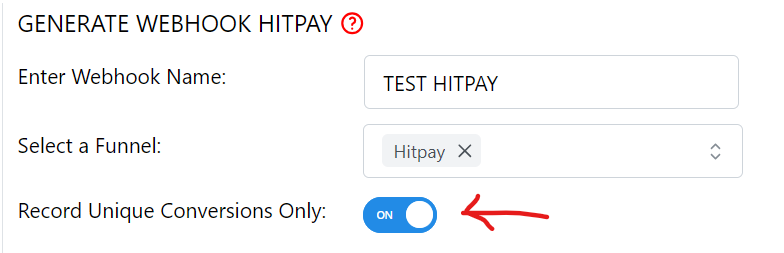
Tip: Enable this option only when multiple purchases belong to the same customer journey. If each purchase should count as its own conversion, leave this option disabled.
If you want to...
Combine multiple webhooks into one reporting goal use: Merge Webhooks.
Track products, plans, form answers, or other values separately use: Webhook Rules.
Your cart, form, or CRM only supports one webhook connection use: Destination Webhooks + Webhook Rules.
Count one conversion per customer while still tracking all revenue use: Record Unique Conversions Only.